How to Integrate a CRM, Plugins and AI Automation Into Your Website
Three ways to connect a CRM, plugins and AI automation to your website (native plugins, Zapier or Make, and direct API), where AI fits, the order to do it in and the mistakes to avoid.
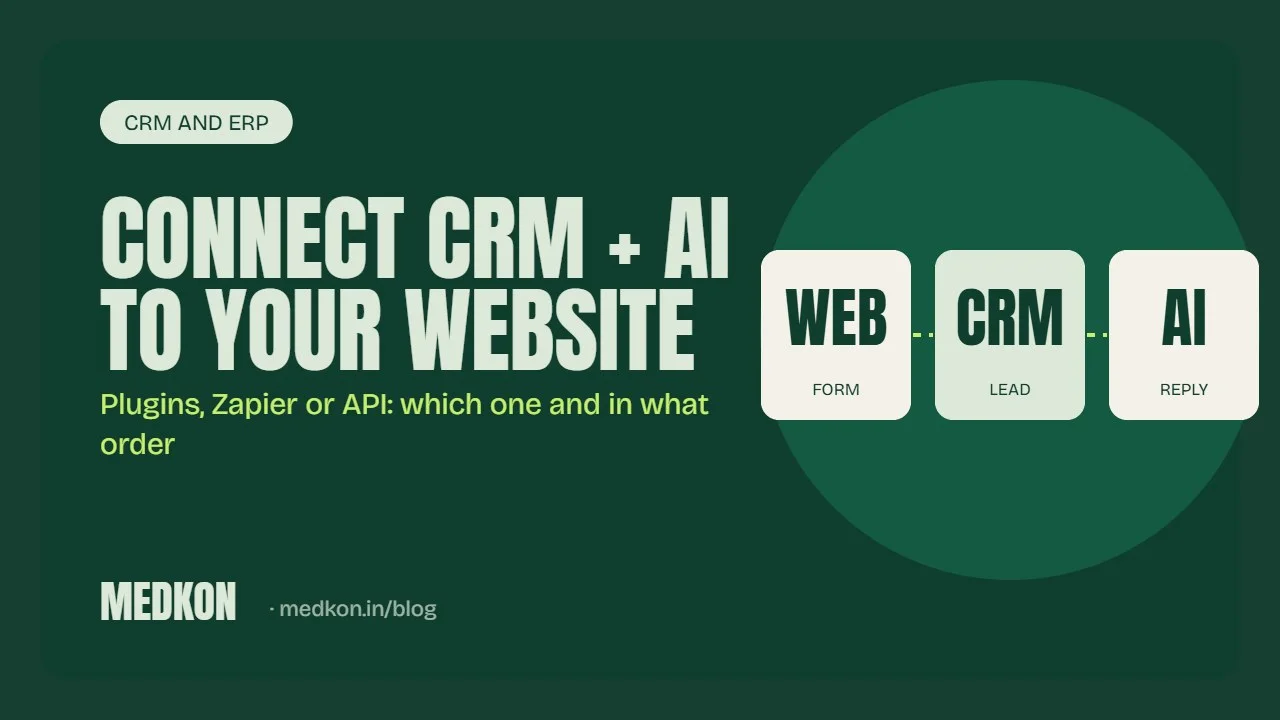
Your website should not be a brochure that sends enquiries to an inbox nobody checks. Connected properly, it captures every lead into a CRM, replies instantly, books calls and tells you which pages bring business. This guide explains the three ways to connect a CRM, plugins and AI automation to a website, and the order we recommend doing it in.
What a connected website looks like
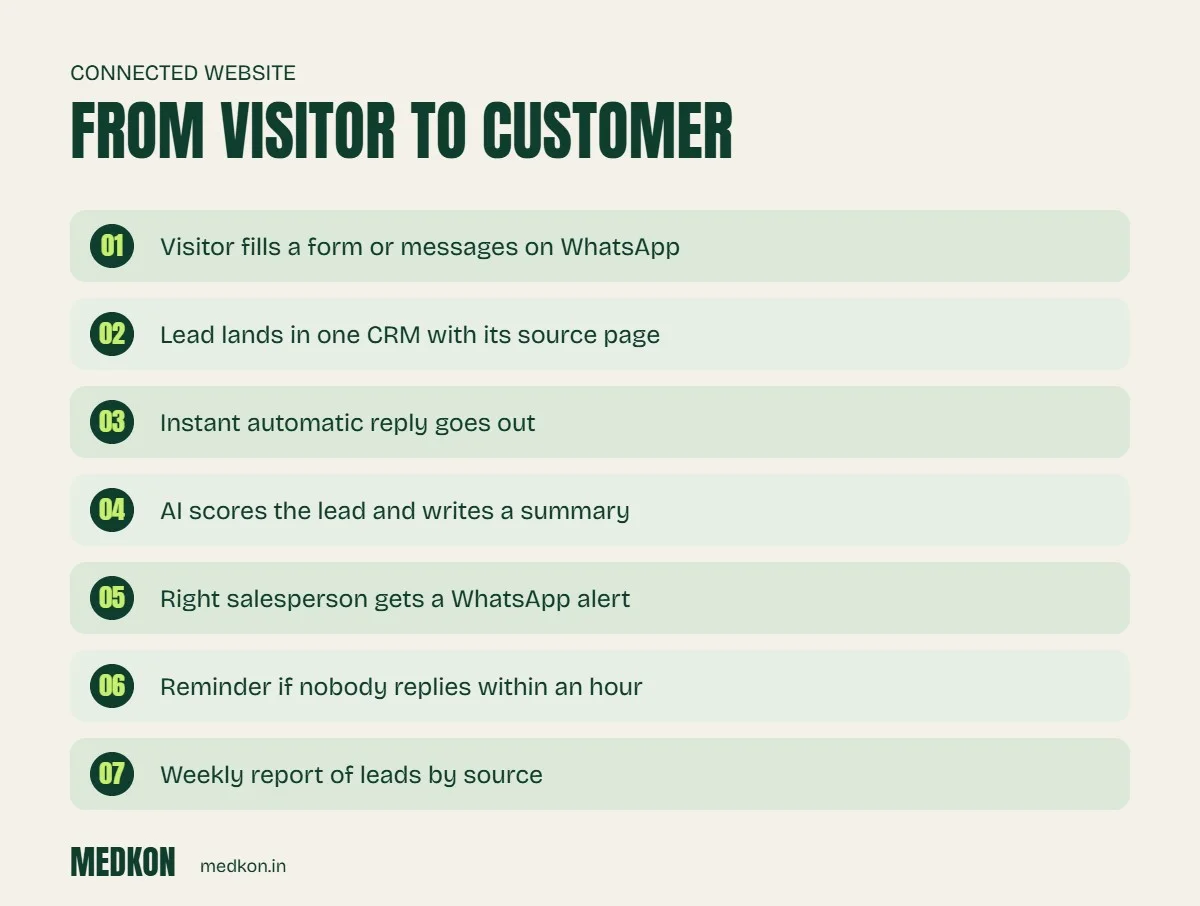
A visitor fills a form or messages on WhatsApp. Within seconds the lead appears in your CRM with its source page, gets an automatic reply, is scored by AI, and the right salesperson gets a WhatsApp alert with a summary. If nobody replies in an hour, the CRM reminds them. Every week you get a report of leads by source.
Three ways to connect your website
1. Native plugins and apps
Most CRMs offer an official plugin for WordPress or an app for Shopify: HubSpot, Zoho, Odoo and GoHighLevel all have options. They are the fastest way to send form entries into the CRM.
- Good for: simple form-to-CRM capture.
- Watch out for: every plugin is extra code that must be kept updated. Install only maintained plugins from the official directory, and remove ones you stop using.
2. Automation tools (Zapier, Make)
Your form or website sends data to Zapier or Make through a webhook, and the tool passes it to the CRM, WhatsApp, Sheets and email. No custom code on the website.
- Good for: connecting several tools, adding conditions and quick changes.
- Watch out for: monthly cost grows with volume, and many small zaps become hard to manage without documentation.
3. Direct API integration
Your developer writes a small server-side script that sends data straight to the CRM's API and calls an AI model where needed.
- Good for: high volume, custom logic and keeping costs flat.
- Watch out for: needs a developer to maintain, and API keys must stay on the server, never in front-end code.
Where AI fits in
- Website chatbot trained on your services and FAQs that collects name, need and budget, then creates the lead in the CRM.
- Lead scoring: AI reads the enquiry text and tags it hot, warm or cold.
- Summaries: the salesperson gets a two-line summary instead of a long message.
- Reply drafts: AI drafts the first reply for a person to approve, or sends it automatically for simple questions.
The order we recommend
- Pick one CRM and make it the single home for leads. Not three spreadsheets.
- Connect every form, WhatsApp and Instagram enquiry to it, with the source tagged.
- Add an instant acknowledgement reply.
- Add follow-up reminders for your team.
- Only then add AI: scoring, summaries and a chatbot.
- Add a weekly report so you can see which pages and channels bring paying customers.
Common mistakes
- Installing five overlapping plugins that slow the site and conflict with each other.
- Putting CRM or AI API keys in JavaScript where anyone can read them.
- No test before launch, so the first real leads are lost.
- No owner: the integration breaks after a CRM update and nobody notices for weeks.
We set up CRM, plugin and AI integrations as part of our business automation and AI automation services. Every integration is tested, documented and secured. See pricing.
Frequently asked questions
How do I connect my website form to a CRM?
Use the CRM's official plugin or app, send the form through Zapier or Make, or have a developer connect it directly to the CRM's API. Start with whichever your CRM supports best.
Which CRM is best for a small business website in India?
It depends on your process. Zoho and HubSpot are common for sales teams, Odoo suits businesses that also need invoicing and inventory, and GoHighLevel suits agencies and funnel-based businesses.
Can I add an AI chatbot to my WordPress or Shopify site?
Yes. A chatbot can be added with a small script or app. Make sure it answers only from your approved information and sends leads to your CRM.
Is it safe to connect AI to my website?
Yes, if API keys stay on the server, the AI only sees the data it needs and every action is logged.