How WordPress Plugins and Chrome Extensions Are Built (Explained Simply)
How a WordPress plugin and a Chrome extension are built, step by step: hooks, admin screens, security, Manifest V3, permissions and Web Store review, plus how to tell if one is safe.
WordPress plugins and Chrome extensions look like magic from the outside: install one, and a website or browser suddenly does something new. Underneath, both are small, well-defined pieces of software with clear rules. Understanding how they are built helps you judge whether a plugin is safe to install, whether an extension is worth building, and when automation is the better answer. We have built and published both, including six extensions on the Chrome Web Store.
How a WordPress plugin is built
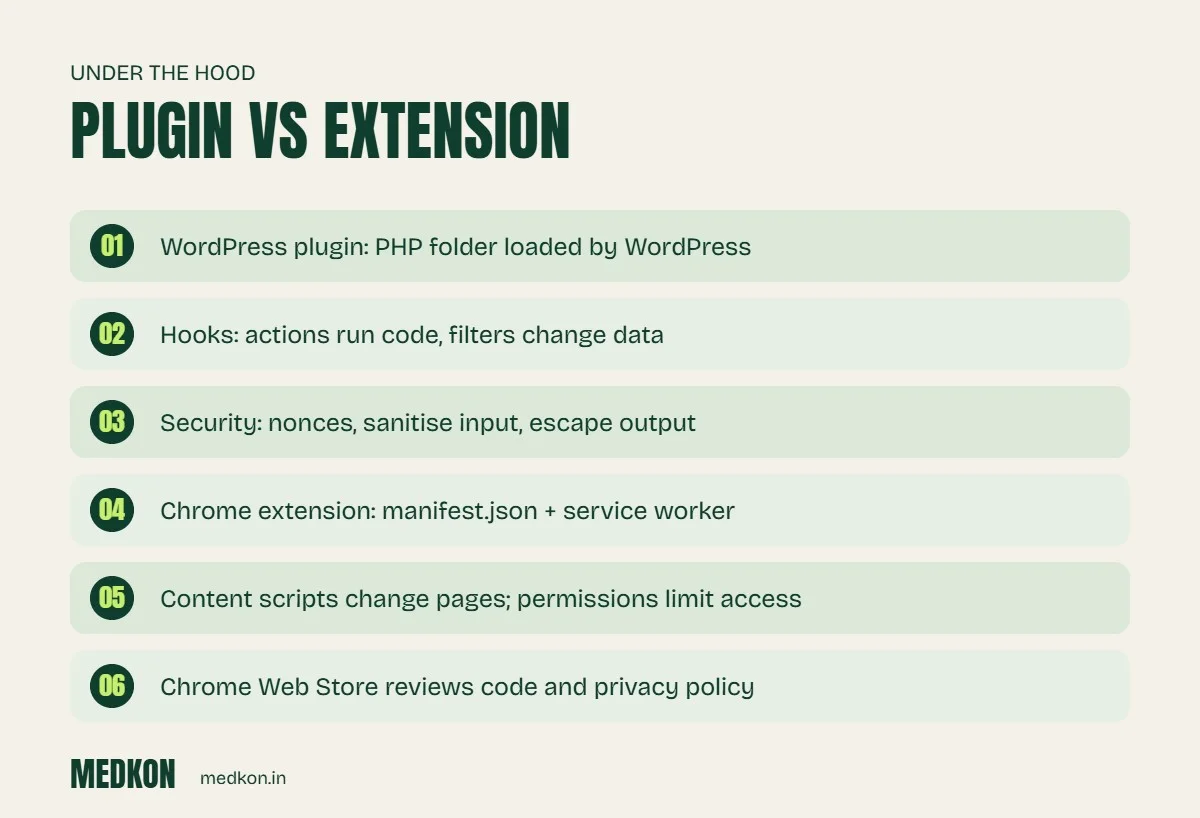
A plugin is a folder of PHP code (plus optional JavaScript and CSS) that WordPress loads on every request. It changes WordPress behaviour without editing WordPress itself.
- Plugin header. A main PHP file with a comment block that tells WordPress the plugin's name, version and author.
- Hooks. The plugin "hooks" into WordPress. Actions run code at a moment (for example when a post is saved); filters change data before it is used (for example the text of a page).
- Admin screens. Settings pages and menus built with WordPress functions, so they match the dashboard.
- Data. Settings are stored in the options table; larger data uses custom post types or custom database tables.
- Front end. Shortcodes or Gutenberg blocks put the plugin's output on pages.
- Security. Every form uses a nonce, every input is sanitised, every output is escaped, and every action checks the user's capability. Skipping these is how most plugin vulnerabilities happen.
- Testing and release. Tested on the latest WordPress and PHP versions, then released through the WordPress.org directory or privately.
How a Chrome extension is built
A Chrome extension is a small web app that lives in the browser. Modern extensions use Manifest V3.
- manifest.json. Declares the name, version, icons and, most importantly, the permissions the extension needs.
- Service worker. Background code that reacts to browser events, such as a tab opening or a button click.
- Content scripts. JavaScript that runs inside web pages to read or change them.
- Popup and options pages. Normal HTML, CSS and JavaScript screens.
- Chrome APIs. Storage, tabs, screenshots, alarms and more, each behind a permission.
- Web Store review. Google reviews the code, permissions and privacy policy before publishing. Asking for fewer permissions makes review faster and users more trusting.
How to tell if a plugin or extension is safe
- Recently updated and compatible with the current WordPress or Chrome version.
- A real developer with a website, support replies and a privacy policy.
- Asks only for permissions it obviously needs. An extension that "reads and changes all your data on all websites" for a simple task is a warning sign.
- Good reviews over time, not a sudden burst.
Outdated plugins are the most common way small business websites get hacked. Read our website security checklist.
Should you build one, or automate instead?
Many businesses ask for a custom plugin or extension when what they really need is to move data between tools: website to CRM, CRM to WhatsApp, orders to sheets. That is usually faster and cheaper to solve with business automation or an AI agent, with no new code to maintain on your website. Build a plugin or extension when the feature truly has to live inside WordPress or the browser.
Frequently asked questions
What language are WordPress plugins written in?
Mainly PHP, with JavaScript and CSS for interface parts and Gutenberg blocks.
What is Manifest V3?
The current format for Chrome extensions. It uses a background service worker and stricter rules on permissions and remote code.
Are free WordPress plugins safe?
Many are, but check when they were last updated, how many people use them and whether the developer responds to support. Remove plugins you do not use.
How long does it take to build a simple plugin or extension?
A simple one with a single feature can take one to two weeks including testing. Store review for Chrome extensions can add a few days.